Remote Control
This page is for explaining cloud-oriented ways of controlling your Pantavisor devices.
Pantacor Hub
Pantacor Hub is our remote device state management system. It's optional — Pantavisor updates fully standalone over the local network without it. Pantahub is also open source and self-hostable; see Project, licensing, and governance for the license split and what's commercial vs. open.
To interact with Pantacor Hub, you can either use the web user interface, the API or the pvr CLI tool.
Pantacor Hub Client
Pantavisor includes a build-in Pantacor Hub client which is enabled by default (PV_CONTROL_REMOTE, default 1). To begin remote control and monitoring of devices with Pantacor Hub, it is necessary to create an account and claim the device to it. From that moment on, the device will be attached to that account and will try to keep the connection with Pantacor Hub opened, except if a local revision is installed. In that case, the device will turn to local control until a go remote command is issued:
pvcontrol cmd go-remote
This behavior can be avoided with the remote always configuration (PV_CONTROL_REMOTE_ALWAYS, default 0).
The owner of a claimed device can also lock its identity in Pantacor Hub and request a reset in order to renew device credentials. The device reboots into a temporary local revision, locals/identity-reset, while the rest of the revisions are cleaned up from disk to start fresh. Then, it drops its old credentials, registers again as a new device linked to the old one and is left again ready for claiming. Unlike other local revisions, locals/identity-reset keeps communication with Pantacor Hub even when remote always is disabled, so the device stays reachable across reboots until the new owner deploys a revision. Identity reset is not available when remote control is disabled (PV_CONTROL_REMOTE=0).
The main features offered by remote control are:
- Keeping the device up to date: the revisions form a trail of steps in Pantacor Hub. This trail is ordered according to the time of deploying and will be consumed by Pantavisor step by step. After founding a new step, Pantavisor will parse the revision State JSON, download the artifacts into the storage and transition to the new revision.
- Sending device metadata and receiving user metadata.
- Sending logs: sending stored logs up.
State Machine
The client state machine goes through the following stages:
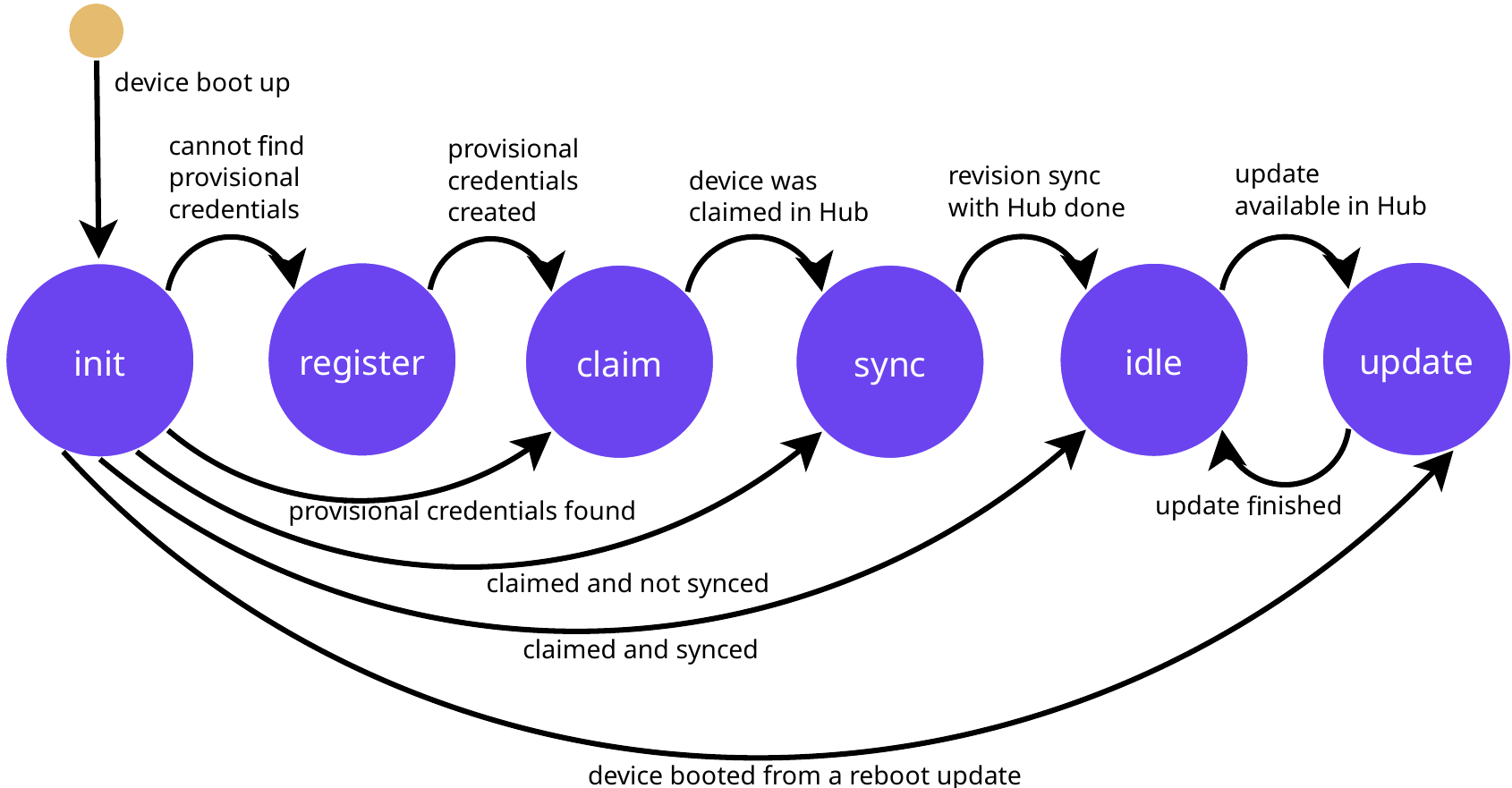
All states are independent from the Pantavisor state machine, but all their associated processes are run from its WAIT state.
The client state can be consulted at any moment via device metadata.
- init: means we are in remote mode and the client has been initialized.
- register: device has not been claimed yet, so it asks the Hub for pre-claiming temporary ones. Those are kept on disk until the device is claimed.
- login: device is using its credentials to start a session with Hub. This is where Pantavisor checks if an identity reset has been issued from Hub.
- reset confirm: the new identity has been claimed and the device is confirming to Hub that an identity reset has been successfully concluded. If Hub reports the new identity as unclaimed, the reset is dropped instead.
- claim: device is registered and waiting to be claimed. Claiming only progresses while the running revision is DONE.
- wait hub: device is asking Hub whether its running revision is already in its trail, which means Hub comms work and the device is claimed.
- prep sync: objects that checksum validation did not cover are hashed. The ones that no longer match their ID, such as writable images, are left out. The device then asks Hub for an upload URL for each object.
- sync objects: device is uploading the artifacts that are not yet present in Hub.
- sync state: device is posting its state JSON to Hub, which becomes the first step of its trail.
- report: an update finished and device will continue uploading devmeta, downloading usrmeta while reporting its update status.
- idle: device has checked all objects and state JSON is in the cloud. This is where the device will spend most of its time, uploading devmeta, downloading usrmeta and waiting for new updates.
- prep download: a new update (same as a new state JSON) has been received and the device will now download the object metadata information for each of its objects. This includes object size, sha and download URL.
- download: all object metadata is now on memory and we can proceed dowloading all objects that are not already installed in disk. Then we will continue with progressing to the new revision.
Only object hashes that changed are downloaded — for a sense of scale, see meta-pantavisor's firmware-size guide for an illustrative example (not a measured benchmark).
Other Remote Controllers
It is also possible to control Pantavisor using any other server. For that, it is necessary to implement a container that performs the communication between the server itself and Pantavisor.
One example of this kind of setup is our Azure IoT Hub client.
Reference
- Configuration — every
PH_*key, plusPV_CONTROL_REMOTEandPV_CONTROL_REMOTE_ALWAYS - Metadata — what the device reports up and what it reads back down
- State Format — the revision format the trail is made of